
Obtaining a BrightSDK API Key
The BrightSDK tools authenticate with the releases API using an API key. Follow these steps to create one.
1
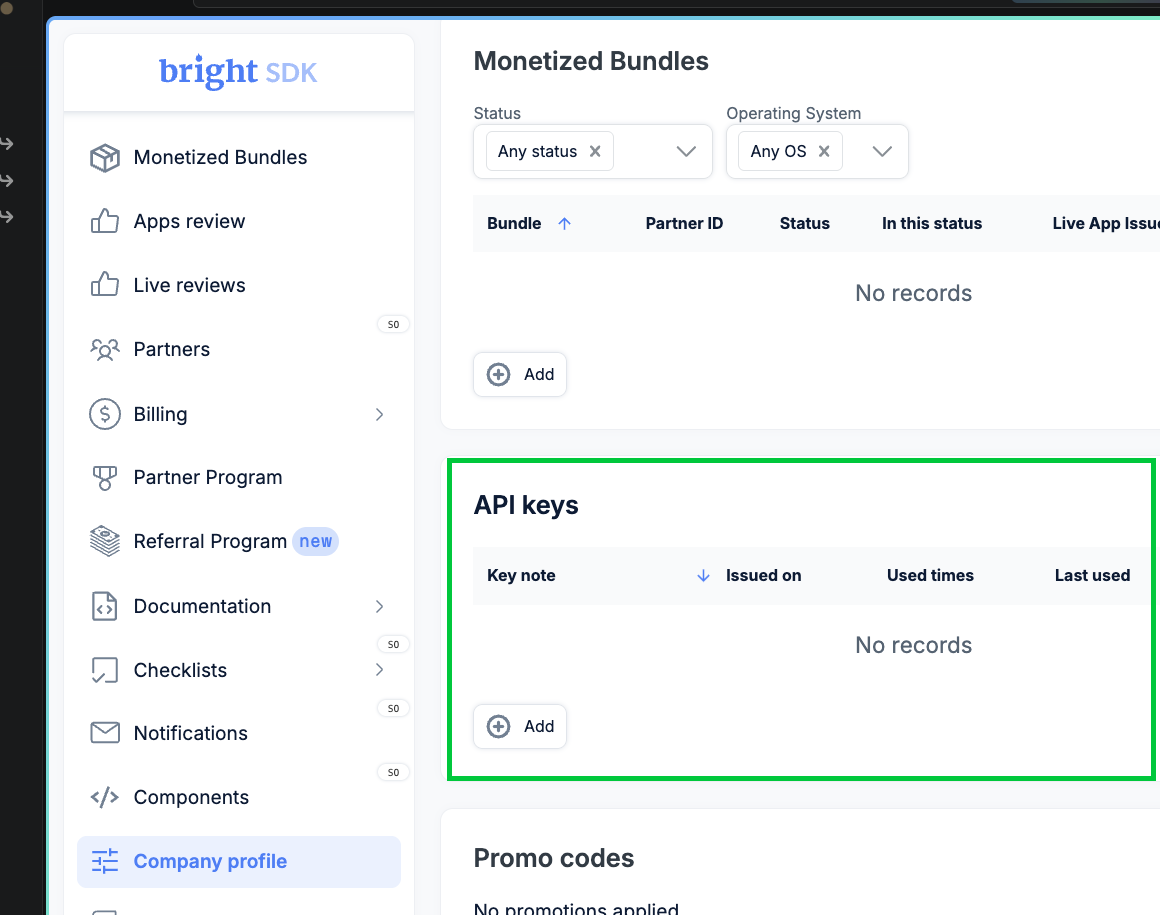
Open API Keys
Log in to the BrightSDK Control Panel — this links directly to the API keys section.
2
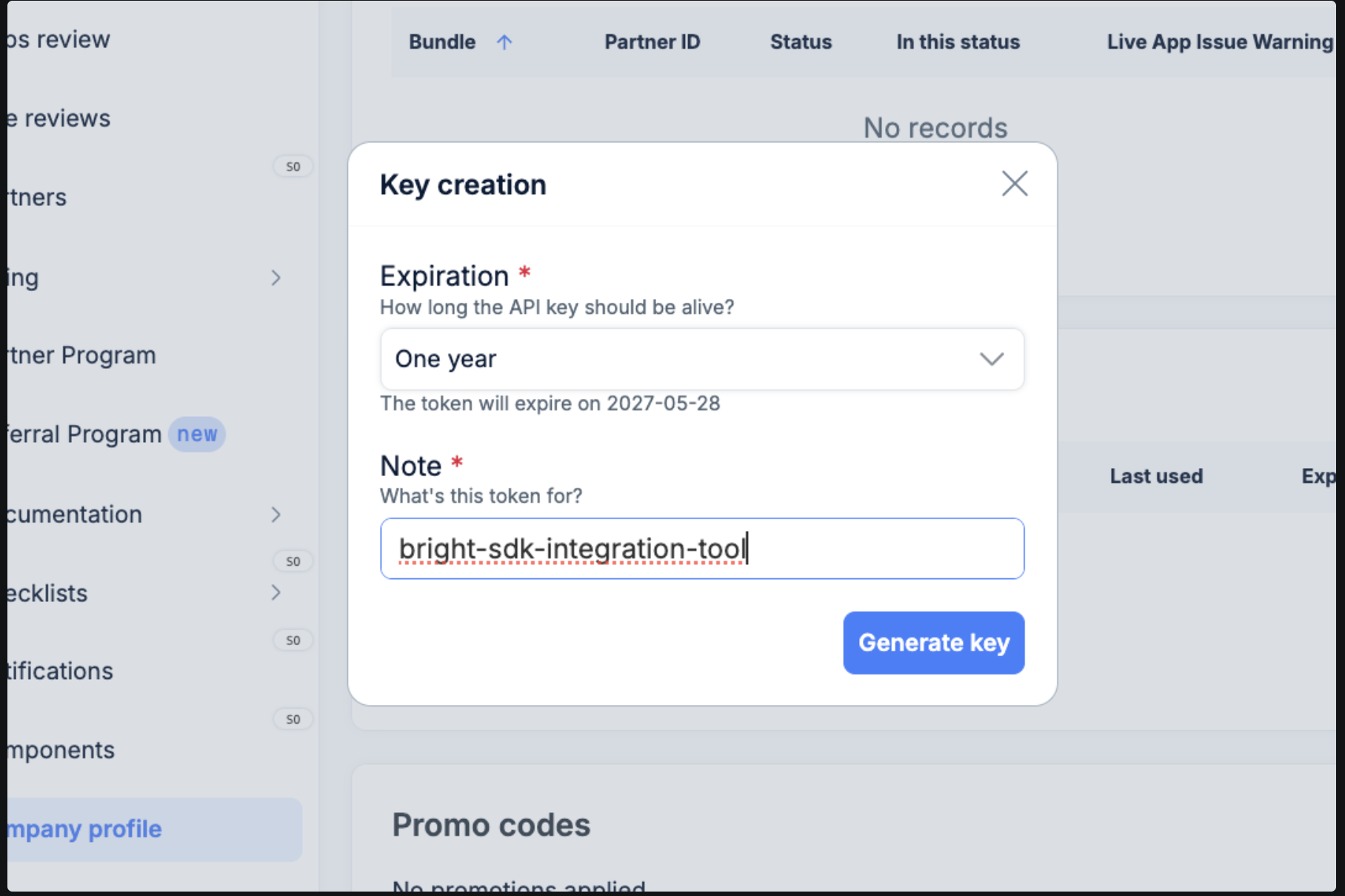
Create a new key
Click + Add. Choose an expiration (e.g. One year), give the key a descriptive name, then click Generate key.
3
Copy your key
The generated key is shown once only — copy it immediately.
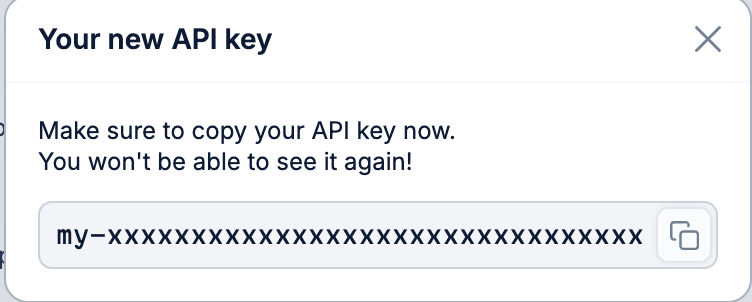
Important: Once you close this dialog the key cannot be retrieved. If lost, delete and create a new one.
4
Set the environment variable
macOS / Linux — export in your shell:
export SDK_API_KEY=<your-api-key>To persist across sessions:
echo 'export SDK_API_KEY=<your-api-key>' >> ~/.zshrcWindows (PowerShell) — set for the current session:
$env:SDK_API_KEY = "<your-api-key>"To persist for your user (survives reboots):
[Environment]::SetEnvironmentVariable("SDK_API_KEY", "<your-api-key>", "User")Windows (CMD) — set for the current session:
set SDK_API_KEY=<your-api-key>To persist for your user (survives reboots):
setx SDK_API_KEY "<your-api-key>"